Connect Salesforce to Claude Code in 10 Minutes
A friendly, click-by-click guide to wire Salesforce into Claude Code as an MCP server, so your terminal can read and reason over your CRM data.
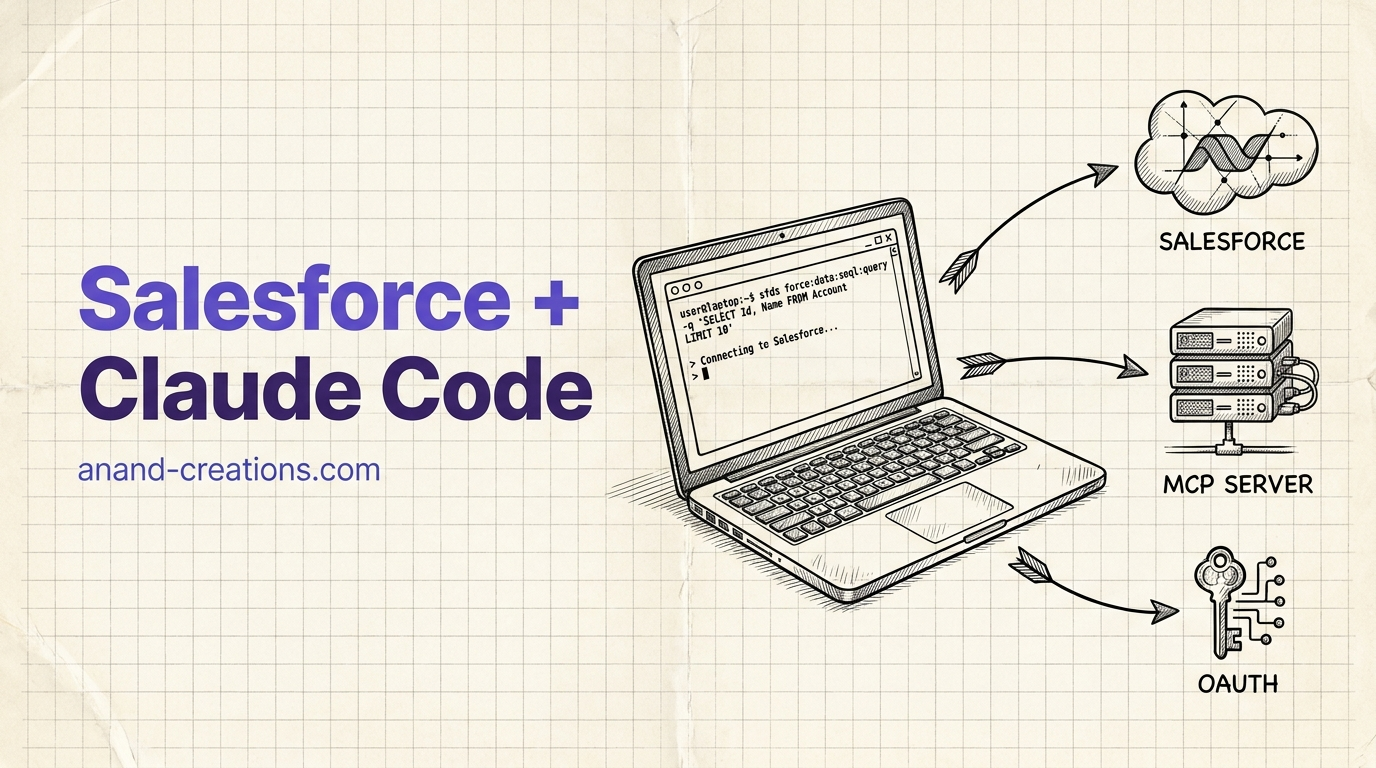
You’re in the middle of writing something. Someone Slacks: “quick, what stage is the Acme deal in?” You sigh, tab into Salesforce, wait for it to load, click through two records, and lose the thread you were on.
What if you could just ask, right where you already are?
> which stage is the Acme deal in?

Acme Corp – Enterprise Renewal is in "Proposal / Price Quote",
$180K, close date 2026-09-15. Owner: Priya Sharma. Last touched
2 days ago by an email from your side.
That’s Claude Code, in your terminal, talking to Salesforce.
Salesforce recently shipped a hosted MCP server, which means Claude Code can now query your CRM directly. No custom integration, no middleware, no OAuth dance you have to write yourself. Ten minutes of setup and you’re done.
Here’s how, one click at a time.
Who this is for
- You use Salesforce (any edition where you can create an External Client App)
- You have admin access to your org (you’re creating an app, so you need the keys)
- You use Claude Code (or want to — grab it from claude.com/code)
If any of that isn’t true, this guide isn’t for you yet. If it is, keep reading.
Step 1: Open the External Client App Manager
Log into Salesforce, click the gear icon in the top right, then Setup.
In the Quick Find box on the left, type External Client App Manager. This is where you’ll create the app that lets Claude talk to Salesforce.
Keep this tab open. We’ll come back to it in Step 3.
Step 2: Turn on the MCP servers you want
Open a new Setup tab and go to Integrations → API Catalog. Look for MCP Servers.
Salesforce ships several of these, each scoped to a different slice of your org. Pick what fits. For this guide I’m using sobject-reads, which is read-only. It’s the safest starting point: Claude can look at your data but can’t change anything.
Click Activate on the server you want, then copy the server URL. Paste it somewhere safe. You’ll need it in Step 6.
Do this first, always. Start read-only. Give it a week. Watch what your team actually does with it. Then think about write access, once you know what you’re trusting Claude to do.
Step 3: Create the app
Head back to External Client App Manager and click New External Client App.
This is the app that represents Claude Code inside Salesforce. Nothing to install here, just some config.
Step 4: Fill in the app settings
Here’s what to put where. Copy these values as-is unless noted.
Basics:
- Name:
Claude MCP - Contact email: your email
- Distribution state:
Local
OAuth settings (this is how Claude logs in):
- Callback URL:
http://localhost:38000/callback - Enable OAuth: on
- OAuth scopes, add all three:
- Manage user data via APIs (
api) - Perform requests at any time (
refresh_token,offline_access) - Access Salesforce hosted MCP servers (
mcp_api)
- Manage user data via APIs (
Security (two toggles that trip almost everyone up):
- Enable Issue JSON Web Token (JWT)-based access tokens for named users
- Disable Require secret for Web Server Flow
Hit Create. Salesforce spins up the app and drops you back to the list.
Step 5: Grab your Consumer Key
Click into the app you just made, go to Settings, and open the Consumer Key and Secret section.
Copy the Consumer Key. Paste it next to the server URL from Step 2. You now have both pieces Claude Code needs.
Step 6: Register the server with Claude Code
Open your terminal and run:
claude mcp add --scope user --transport http salesforce \
  YOUR_SERVER_URL \
  --client-id "YOUR_CONSUMER_KEY" --callback-port 38000
Two things to swap in:
YOUR_SERVER_URL, from Step 2 (for examplehttps://api.salesforce.com/platform/mcp/v1/platform/sobject-reads)YOUR_CONSUMER_KEY, from Step 5
Hit enter. Claude Code registers Salesforce as an MCP server scoped to your user, so it works across every project you open.
Made a typo? No stress. Wipe it and start fresh:
claude mcp remove --scope user salesforce
Then run the add command again.
Step 7: Log in and connect
Start a Claude Code session:
claude
Type /mcp and pick salesforce from the list. Hit enter.
A browser tab opens. Log in with your Salesforce account and approve the app. If everything’s wired right, you’ll see this:
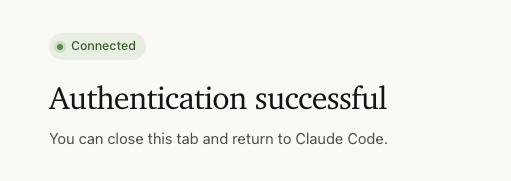
Close the tab, head back to your terminal. You’re in.
Now the fun part
Ask Claude Code the questions you’d normally build a report for:
> How many deals closed this quarter, and what's the total ACV?

12 closed-won opportunities this quarter (Q3 2026), total ACV
$1.47M. Top three by size: Acme ($180K), Halcyon ($165K), Bristol
($140K). Average deal size: $122K, up 18% vs last quarter.
> Summarise the notes on the Halcyon opportunity

Halcyon is a 400-seat rollout for their EU customer success org.
Legal review closed 2 weeks ago. Procurement asked for a 3-year
term at 12% discount vs list. Champion is Marta Weiss (VP CS).
Blocker last week was SOC2 questionnaire, marked complete Monday.
> Any deals stuck in Proposal for more than 30 days?

4 opportunities. Sorted by age:
- Northstar Robotics – $95K – 47 days – no activity in 12 days
- Vertex Media – $210K – 41 days – last touch: sent NDA v3
- Kepler Health – $60K – 38 days – legal review pending
- BluOcean – $75K – 33 days – waiting on IT security review
No SOQL. No reports. No tab-switching. Just the answer.
And since it’s Claude Code, you can chain: pull the stuck deals, draft a nudge email for each owner, write it to a CSV, hand it to your rev-ops person. All in one session.
The read-only ceiling
Since we started with sobject-reads, Claude can only look. It can’t create records, update stages, or delete anything. That’s the right default. Wait until you catch yourself thinking “I wish it could just update that stage for me” before you touch the other servers. Trust builds one boring week at a time.
When you’re ready, come back to Step 2 and enable a server that writes.
What to do if something breaks
The three failure modes I’ve seen:
- Auth loop that never resolves? Callback URL is almost always the culprit. It has to be
http://localhost:38000/callbackexactly. No trailing slash. Port 38000. Not 3800, not 38080. - “Invalid client” error? Copy the consumer key again. There’s usually a stray space at the end from the Salesforce copy button.
/mcpdoesn’t show salesforce? Runclaude mcp listto confirm the server registered. If it’s there but not in/mcp, restart Claude Code. If it’s not there, theaddcommand didn’t take, run it again.
That’s it. You now have your CRM one question away, in the same terminal where you write code. My prediction: within a week you’ll stop opening the Salesforce web UI for read tasks entirely.
Got stuck somewhere, or built something cool on top of this? I’d love to hear about it. Reach out anytime.